Your Ad Here

Showing posts with label Desktop. Show all posts

Monday, March 29, 2010

Desktop 3D effects in Linux with Compiz Fusion

    Not Just Linux capabilities in the application server and application-based commnad sophisticated online only. Display a collection of desktop applications and desktop applications are beautiful and easy to use, can now also be found easily in linux.

    At the time of release windows vista, windows Aero features appear to display the 3D desktop effects that have not been felt in the Window Xp.Linux also not to be outdone, linux developers have made an application package compiz and beryl are also able to display the 3D Desktop features advanced beyond windows Aero.

    Over time the Compiz and Beryl developers agreed to a merger and helped a package of new desktop 3D application called Compiz Fusion. In the compiz fusion you can find a variety of desktop effects are included in its various plugins. To see more diverse effects compiz fusion plugins, please follow the following explanation:

Plugins various effects in compiz fusion

1.EXPO

    Securities to zoom out and see all the ports at a time. This effect is useful to move from a single workspace view to a workspace that lain.Untuk activate this effect, check the plugins Expo located at the desktop category

Activating Expo. Press Super +  e


2.Water Effect

   Plugins if you choose you can bring the water effects in desktop.Untuk activate this effect, check the water effects plugins that are in the category effect.

Enabling water effect
1. Enable Water Effect. Press shift + F9
2. Disable water effect. Tap Back shift +  F9

3.Motion Blur

    Plugins if you choose can deliver blur effect when you move an application. To enable this effect check the Motion Blur plugins contained in the category effect.

Enabling Motion Blur
1. Enable Motion Blur. Press Ctrl + F12
2. Disable Motion Blur. Simply hit Ctrl + F12
3. Creating Motion Blur. Press one of the Border window applications, then move toward what you want


4.Paint Fire On Screen

    This plugins if you choose to bring the look of a burning fire in the courtyard desktop.Untuk activate this effect, check the paint on fire on screen motion blur plugins listed in the category effect.

Enabling Paint Fire On Screen
1. Enable Paint Fire On Screen. Press Shift + Super + Click the left mouse
2. Disable Paint Fire On Screen. Press Shift + Super + c

5.Desktop Rotate Cube & Cube

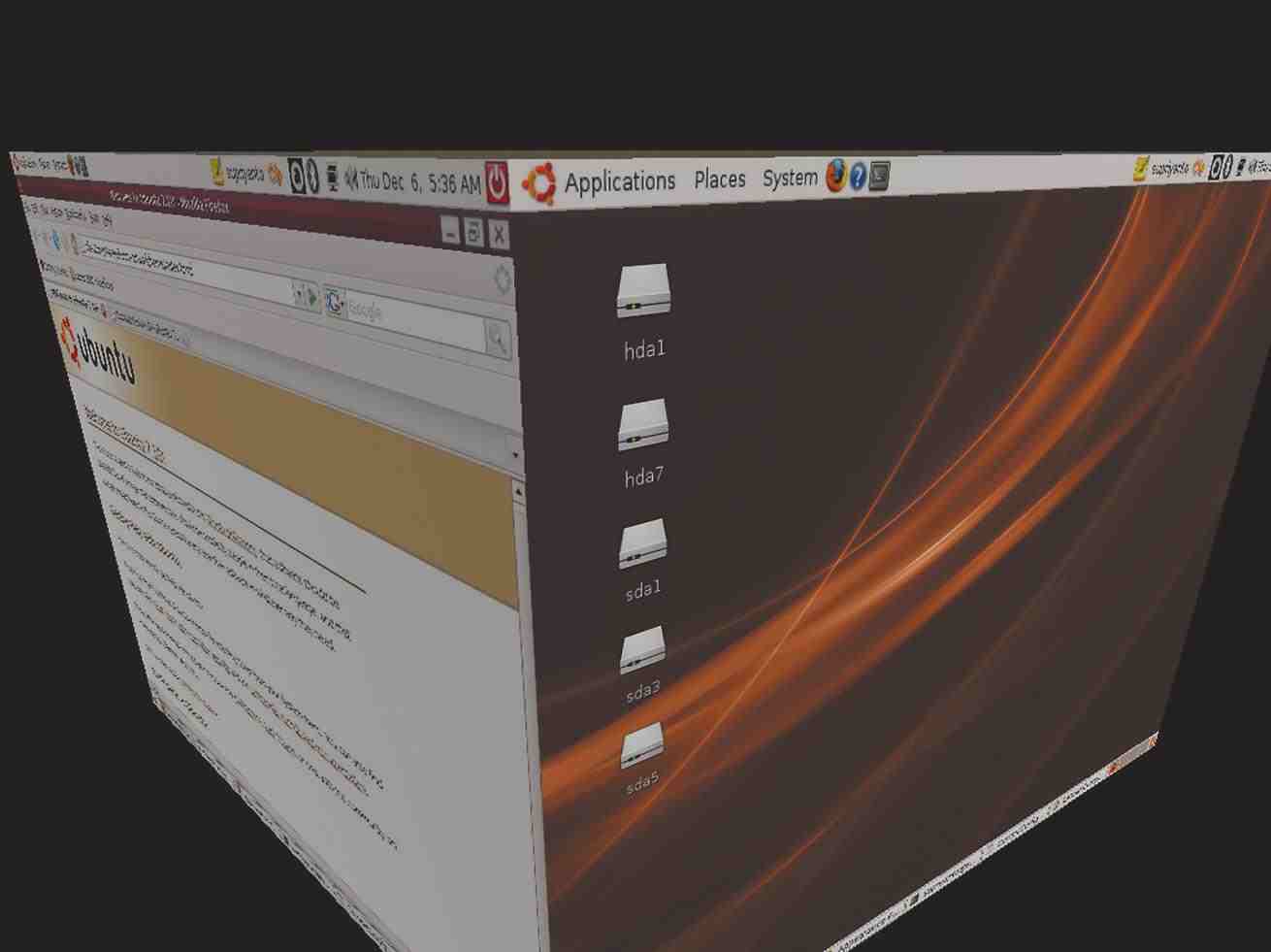
    One interesting effect in compiz fusion. This effect may be present in the form of a desktop display cube box, or move from one window in a mode other kubus.Untuk activate this effect check the plugins desktop cube and rotate cube contained in the desktop category

Enabling Desktop Cube
1. Conducting cube rotation. Press Ctrl + Alt (left click the mouse to the window and movement)
2. Switching to other workspaces. Press Ctrl +  Alt +  Down / Arrow


Thank's
By:Mr.Gm
Read rest of entry

Efek 3D Desktop Di Linux Dengan Compiz Fusion

   
    Kemampuan Linux ubuntu,fedora,opensuse,mandriva dll. Bukan Hanya di aplikasi server dan aplikasi berbasis commnad-line yang canggih saja.Tampilan aplikasi desktop dan kumpulan aplikasi desktop yang indah dan mudah digunakan,kini dapat juga kita temukan dengan mudah di linux.

    Pada saat windows vista dirilis , fitur windows Aero muncul dengan tampilan efek 3D desktop yang belum pernah dirasakan di Window Xp.Linux juga tidak mau kalah ,developer linux telah membuat paket aplikasi compiz dan beryl yang juga dapat menampilkan fitur 3D Desktop yang canggih yang melebihi windows Aero.

    Seiring Berjalannya waktu para developer Compiz dan Beryl sepakat untuk merger dan membantu suatu paket aplikasi 3D desktop baru yang bernama Compiz Fusion.Pada compiz fusion anda dapat menemukan berbagai macam efek desktop yang disertakan dalam beragam plugins-nya. Untuk melihat lebih jauh beragam efek plugins compiz fusion ,silahkan ikuti penjelasan berikut :

Beragam Plugins efek di compiz fusion

1.EXPO

Efek untuk men-zoom out dan melihat semua port dalam satu waktu .Efek ini berguna untuk berpindah dari tampilan worrkspace yang satu ke workspace yang lain.Untuk mengaktifkan efek ini ,beri tanda centang pada plugins Expo yang terdapat di kategori desktop

Mengaktifkan Expo. Tekan Super + e

 
2.Water Effect

Plugins ini jika anda pilih anda dapat menghadirkan efek air dalam desktop.Untuk mengaktifkan efek ini , beri tanda centang pada plugins water effect yang terdapat di kategori effect.

Mengaktifkan water effect

1.Enable Water Effect. Tekan shift + F9
2.Disable water effect .Tekan Kembali shift + F9


3.Motion Blur

Plugins ini jika anda pilih dapat menghadirkan efek blur pada saat anda menggeser suatu aplikasi.Unuk mengaktifkan efek ini beri tanda centang pada plugins Motion Blur yanmg terdapat di kategori effect.

Mengaktifkan Motion Blur

1.Enable Motion Blur .Tekan Ctrl + F12
2.Disable Motion Blur.Tekan kembali Ctrl + F12
3.Membuat Motion Blur.Tekan window Border salah satu aplikasi,kemudian gerakan ke arah yang anda inginkan


4.Paint Fire On Screen

Plugins ini jika anda pilih dapat menghadirkan tampilan api yang sedang terbakar di halaman desktop.Untuk mengaktifkan efek ini, beri tanda centang pada paint fire on screen pada plugins motion blur yang terdapat di kategori effect.

Mengaktifkan Paint Fire On Screen

1.Enable Paint Fire On Screen . Tekan Shift + Super + Click kiri mouse
2.Disable Paint Fire On Screen. Tekan Shift + Super + c


5.Desktop Cube & Rotate Cube

Salah satu efek yang menarik dalam compiz fusion. Efek ini dapat menghadirkan tampilan desktop dalam bentuk kotak kubus,atau berpindah dari satu window lainya dalam mode kubus.Untuk mengaktifkan efek ini beri tanda centang pada plugins desktop cube dan rotate cube yang terdapat di kategori desktop/

Mengaktifkan Desktop Cube

1.Melakukan rotasi cube . Tekan Ctrl + Alt + (click kiri mouse ke window dan gerakan)
2.Berpindah ke workspace lainya. Tekan Crl + Alt+ Down / Arrow


Thank's
By:Mr.Gm

Read rest of entry

Friday, February 19, 2010

Desktop Wallpaper Changer


        Maybe you feel tired and bored with the look wallapper you use on your desktop that is always monotonous, there are solutions to this is by using the application wally.wally automatic wallpaper changer with a wally you can specify a folder that contains images you want to use as wallpaper.


        By wally you can determine the time interval you want for each change of image, you can also use the images found on photobucket, yahoo, flickr, pike, etc.


To Obtain Wally Please Download Here. Files are shaped Deb .* package, so just stay in the install.


Installation wally :


$ sudo dpkg -i wally_2.0.0-1_i386.deb


Screenshot :


Thank's
By:Mr.Gm


Read rest of entry

Perubah desktop wallpaper secara otomatis


Mungkin anda merasa bosan dan jenuh dengan tampilan wallapper yang anda gunakan di desktop anda yang selalu monoton,terdapat Solusi untuk hal tersebut yaitu dengan menggunakan wally.wally adalah aplikasi pengubah wallpaper otomatis dengan wally anda dapat menentukan sebuah folder yang berisi gambar yang anda ingin gunakan sebagai wallpaper.

Dengan wally anda dapat menentukan interval waktu yang anda inginkan untuk setiap pergantian gambar.Anda juga dapat menggunakan gambar-gambar yang terdapat di photobucket ,yahoo,flickr,pike,etc.
Untuk Mendapatkan Wally Silahkan Download Disini .File sudah Berbentuk package .*Deb.Sehingga tinggal di install saja.


instalasi wally :

$ sudo dpkg -i wally_2.0.0-1_i386.deb


Tampilan Gambar :


Thank's
By:Mr.Gm

Read rest of entry

Record your desktop activity with gtk-recordmydesktop


Linux provides many applications that can be used to record an event on the Desktop We work environment. One of them by using gtk-ReordMyDEsktop.gtk-free applications ReordMyDEsktop is contained in the package you can install ubuntu in your repository each. results in a video recorded by gtk-format *. RecordMyDesktop will ogv.

For Installing gtk-RecordMyDesktop follow the way below:

1.Open your Terminal

2.Type $ apt-get install gtk-recordmydesktop

Or through Synaptic Package Manager you with open System> Administration> Synaptic Package Manager, then search and type in gtk-recordmydesktop then give a checklist and install.


examples of the use gtk-recordmydesktop :


Read rest of entry

Rekam kejadian di Desktop dengan gtk-RecoordMyDesktop


Linux memberikan banyak aplikasi yang dapat kita gunakan untuk merekam suatu kejadian di dalam lingkungan kerja Desktop Kita salah satunya dengan menggunakan gtk-ReordMyDesktop.gtk-ReordMyDesktop merupakan aplikasi gratis yang terdapat di dalam package ubuntu anda dapat menginstalnya di dalam repository anda masing-masing .hasil video yang di rekam oleh gtk-RecordMyDesktop akan berformat *.ogv.

Untuk Menginstall gtk-RecordMyDesktop ikuti cara di bawah ini :


1.Buka Terminal anda


2.Ketik $ apt-get install gtk-recordmydesktop


Atau melalui Synaptic Package Manager anda dengan membuka System > Administration >Synaptic Package Manager ,Lalu search dan ketik gtk-recordmydesktop lalu beri checklist dan install.


Contoh Penggunaan dari gtk-RecordMyDesktop :


Read rest of entry

Giving password on grub


        In order to protect not just anyone can enter your system, use a password on grub, this is very useful for those of you who have files that are important in your computer system.

To do this follow the steps below:
1.Into the terminal and run the following command:
$ grub


2.At the terminal, type command md5crypt, then hit enter, fill in the password prompt with a password that you want, not long later, the grub will display the password that you fill in the encrypted state.


3.Edit the file / boot / grub / menu.lst by using the text editor you want, Put the following parameters under initrid, adjust these parameters, in accordance with md5 password encryption in the can before.


gksu gedit / boot / grub / menu.lst


4.When finished, save the file changes, and reboot, now every one will enter the operating system options that have been given a password parameter, the grub will ask for a password first, if entered passwords match, then you can immediately go into the operating system choices ..


Thank's
By.Mr.Gm
Read rest of entry

Memberi password pada Grub


Untuk melindungi tidak sembarang orang dapat memasuki sistem anda,gunakan password pada grub ,hal ini sangat berguna sekali bagi anda yang memiliki file-file yang sangat penting di dalam sistem komputer anda.

Untuk melakukan hal tersebut ikuti langkah di bawah ini :


1.Masuk ke terminal dan jalankan perintah berikut :


$ grub


2.Pada terminal ,ketikan perintah md5crypt,lalu enter.Pada prompt password,isikan dengan password grub yang anda inginkan.Tak berapa lama kemudian,grub akan menampilkan password yang anda isikan dalam keadaan terenkripsi.


3.Edit file /boot/grub/menu.lst dengan menggunakan text editor yang anda inginkan,letakan parameter berikut dibawah initrid,sesuaikan parameter tersebut,sesuai dengan enkripsi md5 password yang di dapat  sebelumnya.

$ gksu gedit /boot/grub/menu.lst


4.Setelah selesai,simpan hasil perubahan file,dan lakukan reboot.Kini setiap akan memasuki salah satu piliihan sistem operasi yang sudah diberikan parameter password,grub akan menanyakan password terlebih dahulu.Jika password yang dimasuki sesuai,maka anda dapat segera masuk ke pilihan sistem operasi tersebut..


Thank's
By.Mr.Gm
Read rest of entry

Tuesday, October 6, 2009

Switch to Kubuntu, Xubuntu, or Edubuntu

        To switch to Kubuntu, Xubuntu, or Edubuntu, use Synaptic to search for and install kubuntu-desktop, xubuntu-desktop, or edubuntu-desktop respectively (if you want the KDE4 release of Kubuntu, look for kubuntu-kde4- desktop). These are metapackages17 on which the whole of the Kubuntu Xubuntu, and Edubuntu packages rely. Kubuntu, Xubuntu, or Edubuntu will be installed alongside the standard GNOME desktop (in the case of Edubuntu, the additional educational software will be installed along with the Edubuntu kids’ GUI theme; this will be applied automatically upon installation and you can manually switch back to the Human theme if you wish).

        To use Kubuntu or Xubuntu instead of GNOME, log out and click the Options button at the bottom left of the login screen. Then click Select Session, and select KDE or XFCE from the menu. To return to the GNOME desktop, repeat this step and select GNOME instead.

Ubuntu :


Kubuntu :


Xubuntu :


Edubuntu :


Thank's
By:Mr.Gm


Read rest of entry
 

My Room Temperature

My Pressure

My Humidity